Welcome to 'itsyour-site.blogspot.in'

Showing posts with label video tips. Show all posts

Wednesday, 11 April 2012

Top 5 Video Editing Software Programs For Video Hobbyists


Top 5 Video Editing
Software Programs For Video Hobbyists

If you're new to the digital video hobby, one of the things you'll very quickly realize is the need for a good video editing program. A video editing program allows you to add special effects to your otherwise boring video.
         You can add in things like titles, transactions, time lapse, audio and even use advanced techniques like chroma key to enhance your video production.
        Here are my top 5 recommendations for video editing programs that are suitable for video enthusiasts. Pick one of these programs and learn it well. Once you master the basics, upgrade to more professional level suites and you can really begin editing broadcast quality video.
Corel VideoStudio
Corel VideoStudio is a real gem of a program. You get professional level editing capabilities for a very reasonable price. Some of the special effects I like in the VideoStudio suite include time lapse and stop motion animation. Of course, you can access a huge variety of ready-built templates for titles, transitions, DVD menus and more. Top-of-the-line software and it sits high on my recommendation list.
Movavi
Movavi is a nice little video editing tool for beginners. This video editing and disc authoring application features an intuitive interface and seamless workflow so that you can easily create professional looking videos. Don't be deceived by the brand. While it is not as well known as Adobe, Corel or Pinnacle, Movavi has been getting a lot of rave reviews on the Internet. Find out more about Movavi here.
Adobe Premiere Elements
Adobe Premiere Elements is considered by many as a 'lite' version of its more commercial cousin Adobe Premiere Pro. Premiere Elements offers the perfect combination of creative control and reliability for home video editing. Whether you just quickly edit your footage, add fun effects, and create custom DVDs, or experiment with more complex effects, this software package will allow you to do it. Very nice option for those intending to upgrade to Adobe Premiere Pro at some point.
Nero Software
I used to love Nero for its DVD burning software. Nero has now moved on into video editing and the outcome is no pushover. You get solid capabilities like basic editing tools, transitions, effects also also a nice variety of output formats for your video production. Again, not as well known as your Adobe, Corel or Pinnacle video editing suites, but a solid option if you just want a small, neat video editor.

Pinnacle Studio
Pinnacle Studio is a full fledged editing tool which competes directly alongside Corel VideoStudio. In my view, Pinnacle Studio can let you do everything you want with your digital video at the beginner and intermediate levels. Whether you want simple transitions and titles, or complex options like chroma key, Pinnacle Studio has it all. One of the better video editors and also high on my recommendation list.

Conclusion

       Which of these video editing programs would you pick? Well it's a close fight between Corel VideoStudio and Pinnacle Studio. Both of these products are simple enough for beginners yet have sophisticated features for intermediate level users. I also like Movavi for its amazing and fun approach to editing videos.
       These programs will satisfy your video editing needs for a long time to come. Once you get comfortable with these programs, you can then venture into professional video editing with suites like Adobe Premiere Pro or Final Cut Pro.


Wednesday, 4 April 2012

How to Rotate a Video Taken at an Angle Easily


Windows Movie Maker IconThis tutorial shows how you can Rotate a video taken at an angle (for example the video was taken holding the camera vertically) by 90, 180, 270 degrees easily using the Windows Movie Maker software.
This tutorial assumes that the video file you are trying to fix is in a format readable by the Windows Movie Maker software (e.g .avi, .wmv, .mpg, .mpeg etc video file format).

How to Rotate a Video in Windows XP

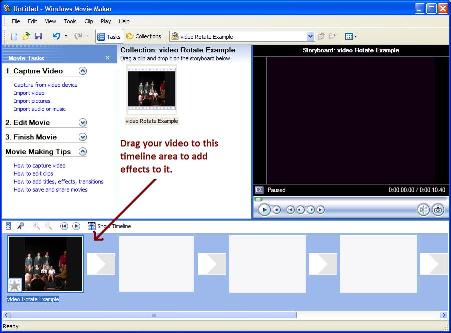
  1. Import the video clip into Movie Maker (File -> Import into Collections).
  2. Drag and drop the imported video onto the Timeline.
  3. Select Video Effects from the Tools menu (Tools -> Video Effects).
  4. Select and drag the ‘Rotate 90′ or ‘Rotate 270′ effect depending on if you want to rotate the video clockwise or anti-clockwise onto the movie on the timeline. (Alternatively, you can right click on the star looking icon in the lower left corner of the movie in the timeline and then select ‘Video Effects’ to bring up the ‘Video Effects’ Window and then add the ‘Rotate 90′ effect to the video).
  5. Click on the ‘Save Movie File’ from the ‘File’ menu and follow the onscreen instruction to save your movie with the new effect (File -> Save Movie File).
    Windows Movie Maker Screenshot
    Windows Movie Maker Screenshot

How to Rotate a Video in Windows vista

  1. Import the video clip into Movie Maker (File -> Import Media Items).
  2. Drag and drop the imported video onto the timeline.
  3. Select Video Effects from the Tools menu (Tools -> Effects).
  4. Select and drag the ‘Rotate 90′ or ‘Rotate 270′ effect depending on if you want to rotate the video clockwise or anti-clockwise onto the movie on the timeline. (Alternatively, you can right click on the star looking icon in the lower left corner of the movie in the timeline and then select ‘Effects’ to bring up the ‘Effects’ Window and then add the ‘Rotate 90′ effect to the video).
  5. Click on the ‘Publish Movie’ from the ‘File’ menu and follow the onscreen instruction to save your movie with the new effect (File -> Publish Movie).
                 This should work easily without any trouble but If you are unsure of any step mentioned above and want some clarification then leave your question in the comment area below and I will try to follow that up.
                 If you know of any other easier way to Rotate a Video then please let me and the readers know by leaving your suggestion in the comment area below.